Appearance
ShareX
Configuration
SSH key (recommended)
ShareX saves passwords in readable format into configuration file. It's recommended to use SSH key authentication.
Create PEM format private and public key for ShareX by executing:
bash
ssh-keygen -t rsa -m PEM -b 4096 -f ~/.ssh/sharex

# Key passphrase is optional
ssh-keygen -t rsa -m PEM -b 4096 -f ~/.ssh/sharex

# Key passphrase is optional
1
2
3
2
3
Make sure that private key is using RSA instead of OpenSSH, latter won't work with ShareX.
Copy the contents of the public key from local ~/.ssh/sharex.pub to ~/.ssh/authorized_keys file on your SFTP server. Set the path to private key in ShareX destination settings.
File naming
To change name of the file navigate to Destinations > Task settings > Upload > File naming. Set both name patterns to %h-%mi-%s or according to your own preferences.
Destination
Set upload destination to own SFTP server by navigating to Destinations > Destination settings > File uploaders > FTP / FTPS / SFTP. Set properties as shown in image below.
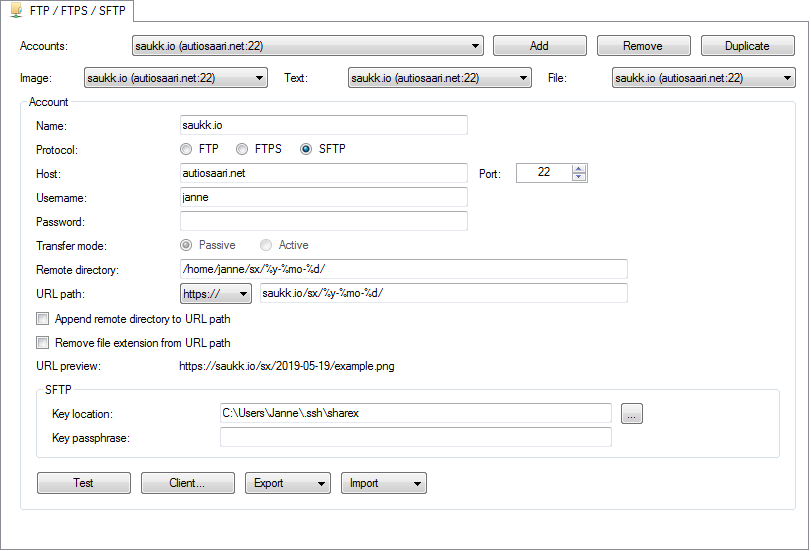
Explanations
- Remote directory: directory path in the SFTP server
- URL path: public URL to image directory
- SFTP / Key location: path to private key